For Bookkeepers, CPAs & Small Business Owners
Convert PDF Bank Statements into Excel, CSV or QuickBooks
Chase, Bank of America, Wells Fargo, Capital One — plus any other bank, credit union, or payment platform worldwide via our universal converter.
Native PDF parsing, not OCR. Pay only for the statements you convert.
PDF bank statement → Bank Parser → Excel, CSV, or QuickBooks-ready .QBO
Learn about the Bank Statement Converter →
Which case is yours?
- You only have PDF statements? → That's exactly what Bank Parser converts ↓
- Bank gives CSV exports? → Use QuickBooks Banking → File upload (no conversion needed).
- Bank feed in QuickBooks works? → Use that — QuickBooks handles it automatically.
This page focuses on converting PDF bank statements into QuickBooks-ready files.
Bank Parser is a PDF bank statement conversion tool built for QuickBooks Online and Desktop workflows. Native parsing means transactions are extracted directly from digital PDF structures instead of image recognition (OCR).
Pay-as-you-go vs Monthly Subscription
Pay-as-you-go
- $0 minimum monthly cost
- Pay only for what you use
- No contract, cancel anytime
$10-40/month
- Monthly subscription required
- Pay even with zero usage
- Annual contracts common
1-Click Send to QuickBooks
Direct QuickBooks Online integration. No CSV downloads. No field mapping. No cleanup.
Upload PDF
Checking, Savings, or Credit Card
Review Data
17 fields extracted with balance verification
Send to QuickBooks
Transactions appear in Banking tab instantly
See How It Works
From bank statement PDFs to a standardized, QuickBooks-ready dataset in under 30 seconds
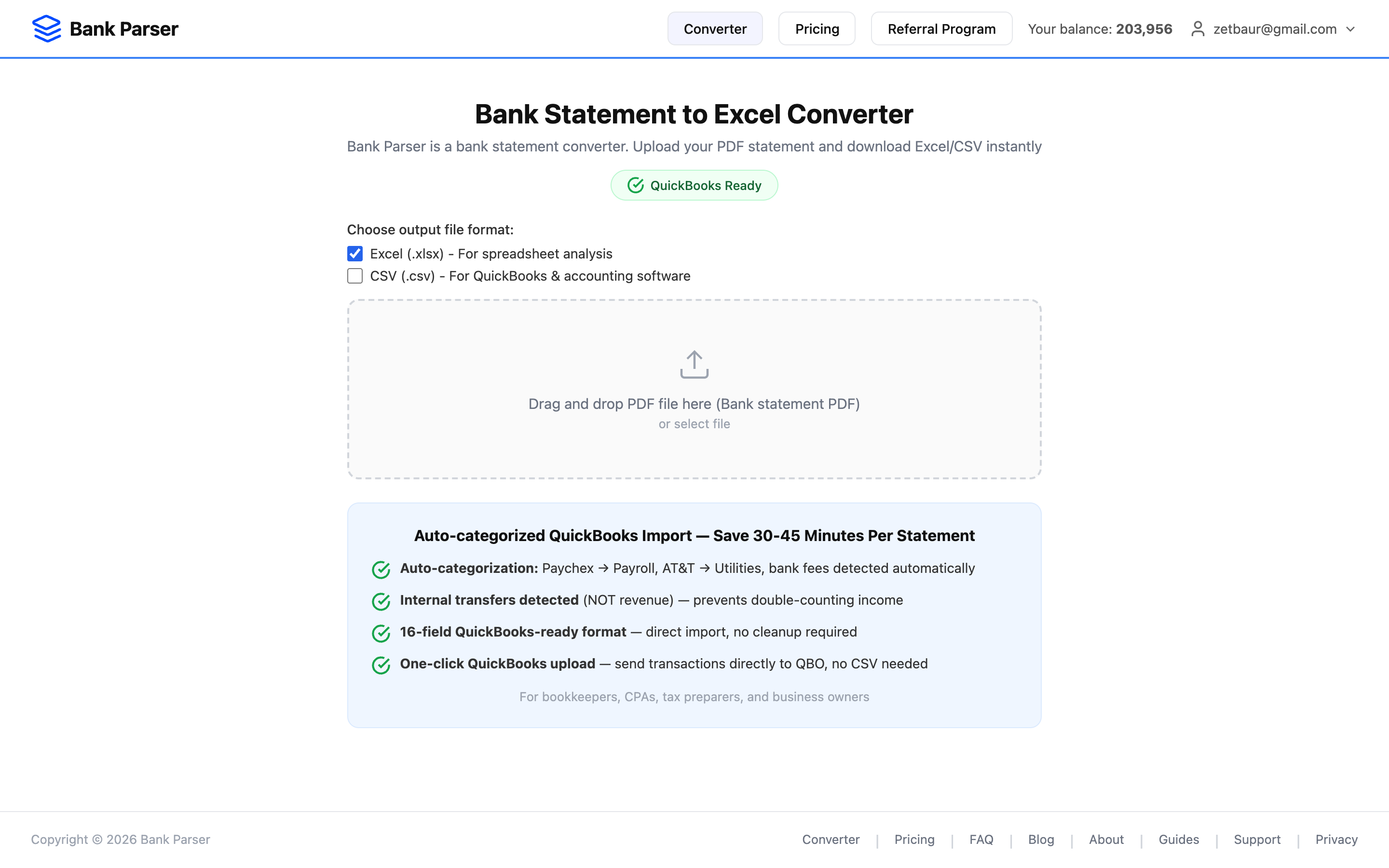
1. Upload Your PDF
Drag and drop or select bank statement PDFs. Supports Chase, BOA, Wells Fargo, Capital One.
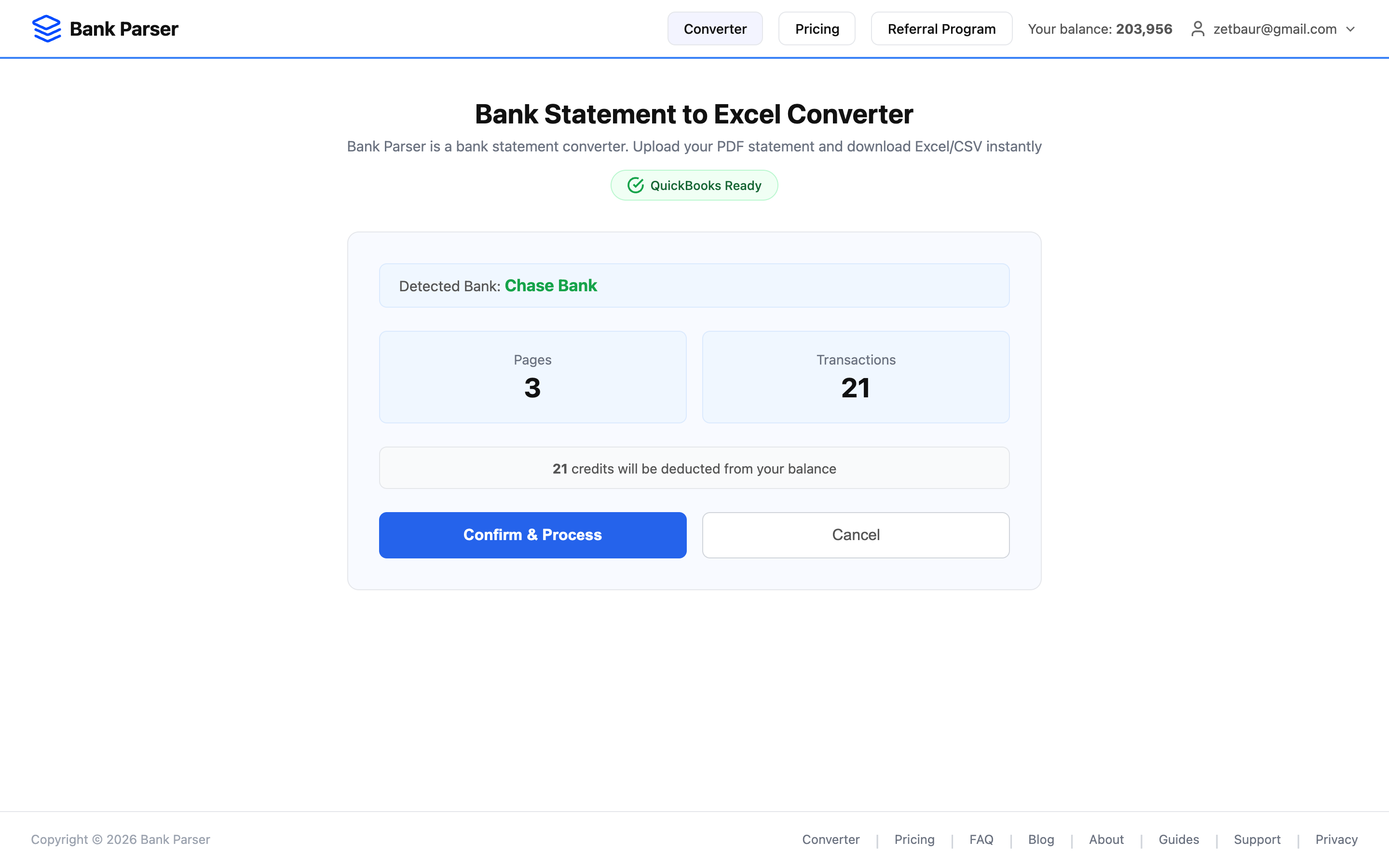
2. Auto-Detect Bank & Account
Bank, account type, pages, and transaction count identified automatically. No manual setup needed.
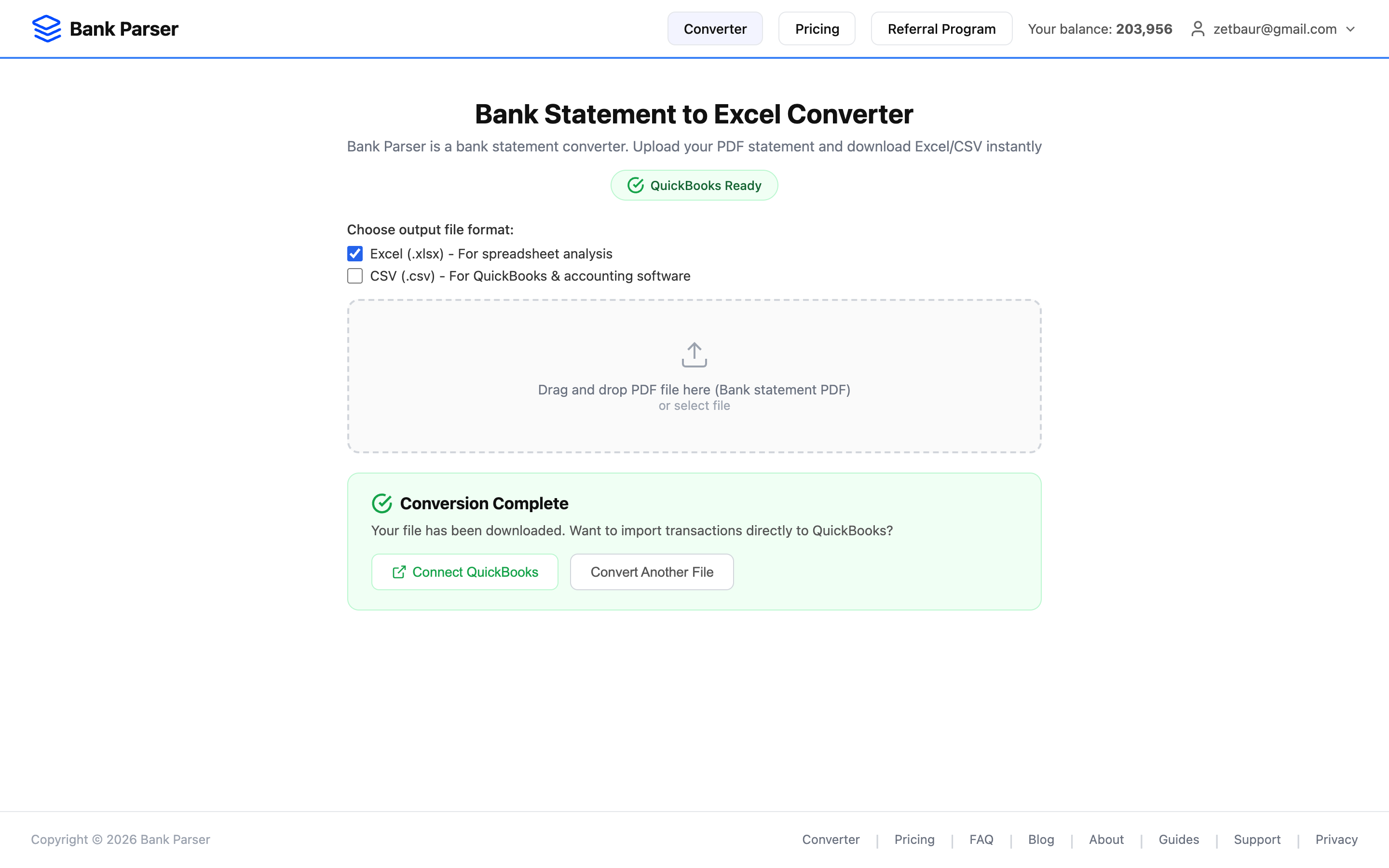
3. Download or Send to QuickBooks
Get your Excel file instantly, or push transactions directly to QuickBooks Online with one click.
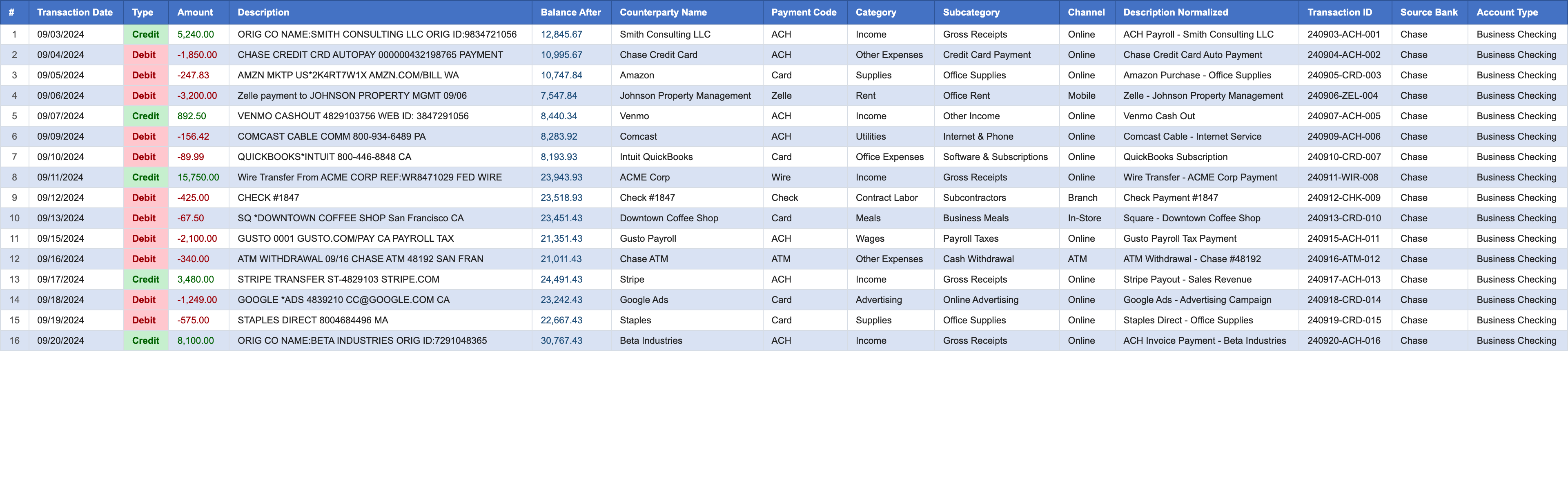
4. Structured Excel Output
17 columns including date, amount, category (IRS Schedule C), payment code, balance, and more.
Why Solo Bookkeepers Choose Bank Parser
Direct QuickBooks integration vs competitors who only export files
Direct QuickBooks Import
Send transactions straight to QuickBooks Online. No CSV downloads, no mapping, no manual cleanup required.
16+ Data Fields Extracted
More than double the fields of competitors. Includes check numbers, balance verification, and reference IDs.
Bank-Specific Parsers
Not generic OCR. Purpose-built parsers for Chase, Wells Fargo, BOA, Capital One — Checking, Savings & Credit Cards — achieve 99% accuracy vs 70-80% of generic tools.
Any Date Range
Import historical statements from any year. No 90-day limit like bank feeds. Perfect for catch-up bookkeeping.
Multi-Source Data Extraction
Extract and aggregate transaction data from 4 major US banks into one standardized format. Checking, Savings, and Credit Card statements unified automatically.
QuickBooks Online Integration
Direct OAuth connection to QuickBooks Online. Transactions sync to your Banking tab automatically. Also exports to Excel and CSV.
Integrations & Export Formats
Connect with your accounting workflow
QuickBooks Online
Direct OAuth integration. Transactions sync to Banking tab automatically.
Microsoft Excel
Download .xlsx files with 17 structured columns. Compatible with Excel 2010+.
CSV Export
Standard CSV format for any accounting software, spreadsheets, or custom workflows.
Supported Banks
Chase Statement to Excel
Checking, Savings & Credit Cards
BOA PDF to Excel
Checking, Savings & Credit Cards
Wells Fargo to Excel
Checking, Savings & Credit Cards
Capital One to Excel
Checking, Savings & Credit Cards
Explore the platform: Bank Statement Converter | Convert to Excel | Import to QuickBooks | Accuracy Report
How to Import Bank Statements to QuickBooks
1. Upload Your Bank Statement PDF
Select your Chase, Bank of America, Wells Fargo, or Capital One statement. Works with checking, savings, and credit card accounts.
2. Review Extracted Data
17 fields extracted automatically: dates, amounts, descriptions, check numbers, running balance. Verify accuracy before import.
3. Send to QuickBooks (or Download Excel)
Click "Send to QuickBooks" for direct import, or download Excel/CSV for other accounting software. No manual mapping required.
Secure Online Statement Converter
Your financial data is protected at all stages of processing. We do not store your files.
- ✓Files automatically deleted after conversion — we do not store your data
- ✓HTTPS encryption protects all data transfers
- ✓No data sharing with third parties
Frequently Asked Questions
Can I try Bank Parser for free?
Yes, you get 200 free operations when you register. This is enough to process your first client completely free (3-4 bank statements). No credit card required.
Which banks does Bank Parser support?
Bank Parser supports Chase Bank, Bank of America, Wells Fargo, and Capital One — the top 4 US banks covering over 60% of US banking. We support Checking, Savings, AND Credit Card statements. We extract routing numbers, EIN (Tax ID), ACH payments, wire transfers, and categorize all transactions automatically.
How long does it take to convert a statement?
Most statements (up to 1,000 transactions) are converted in under 30 seconds. Large statements with 5,000+ transactions may take 2-3 minutes. You'll receive an email notification when the conversion is complete.
Can I import statements directly into QuickBooks?
Yes! Bank Parser has direct QuickBooks Online integration. Click "Send to QuickBooks" and transactions appear in your Banking tab instantly. No CSV downloads, no field mapping, no manual cleanup. Also works with QuickBooks Desktop via Excel export.
Import Bank Statements to QuickBooks in Minutes
Direct integration. No CSV formatting. 200 free operations to test.